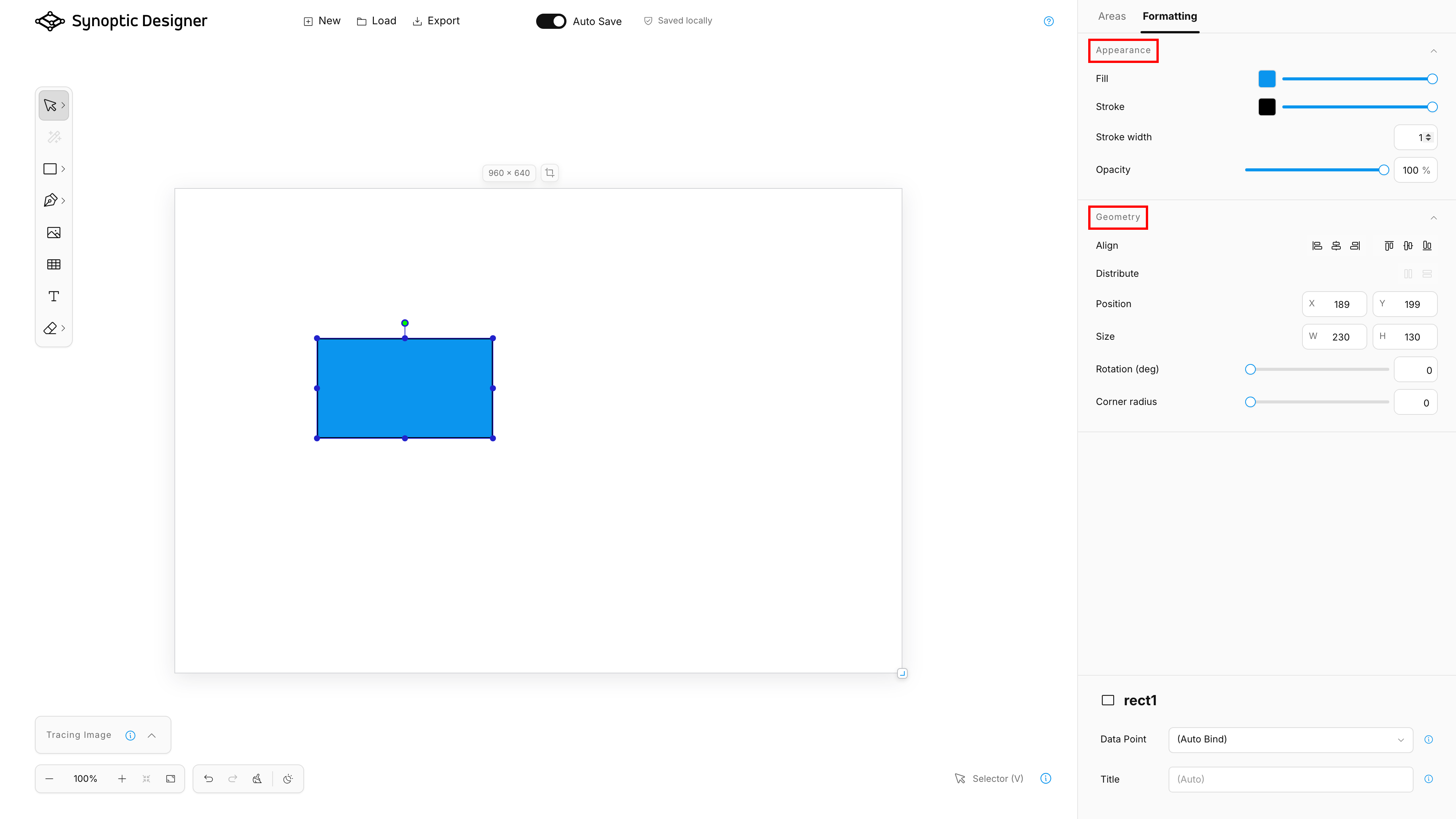
The Formatting tab changes the visual appearance and geometry of the current selection. Controls adapt to the selected object type and selection count.
If nothing is selected, the panel asks you to select an area. If a selection cannot be formatted, the panel explains that no formatting controls are available.
Appearance
For a single supported selection, Appearance can include:
- fill color;
- fill opacity;
- stroke color;
- stroke opacity;
- stroke width;
- object opacity.
Color pickers include no-color, current color, recent colors, palette colors, and custom color selection.
Selection Colors
For multi-selection, Synoptic Designer shows Selection Colors instead of a single-object appearance editor. This lets you replace fill or stroke colors used by selected objects without forcing unrelated colors to one value.
Each color row can include opacity controls. Mixed values are shown when selected objects share a color but differ in opacity or related properties.
For grouped content where child paint targets are meaningful, Selection Colors can expose supported child fills and strokes without forcing the whole group to behave like a single flat shape.
Geometry
Geometry contains controls for measurable SVG objects:
- alignment;
- distribution;
- position;
- size;
- rotation;
- corner radius when supported.
Single selections align directly to the canvas. Multi-selection alignment defaults to the selected objects and can be switched to canvas alignment.
Distribution controls are available when enough unlocked objects are selected.
Position and size values use document coordinates, not screen pixels. Changing zoom does not change the underlying geometry values.
Corner Radius
Supported rectangles, polygons, and compatible closed paths can expose a corner radius control.
When changing corner radius while Node Selector is active, Synoptic Designer returns to normal selection before refreshing generated path geometry. This prevents stale point handles from editing obsolete curve data.
Typography
Text selections can expose typography controls:
- font;
- size;
- weight;
- text alignment.
Text formatting applied to an active text object becomes the default for subsequent text objects created in the same editor session.
Locked Objects
Locked objects cannot be transformed or formatted through normal editing controls. Unlock the object from the Areas tree or context menu before changing its appearance or geometry.