Synoptic Designer has two different persistence concepts: browser-local save and file export.
Browser-Local Save
Browser-local save stores the current project in the browser profile by using IndexedDB. It is designed for continuing work later on the same device, browser, and profile.
When Auto Save is enabled, Synoptic Designer saves changes locally and shows the current save state after the project contains saveable content. When Auto Save is disabled, use Save in the header to save manually.
Save Modes
Auto Save is enabled by default. After a project with saveable content changes, Synoptic Designer waits briefly, saves a browser-local snapshot, and updates the header status to Saving, Saved locally, Unsaved, or Save failed.
New empty projects and artboard-only changes do not show save feedback until the canvas contains saveable content. If a saved project later returns to empty content, Synoptic Designer keeps the normal saved feedback for that project.
When Auto Save is disabled, Synoptic Designer does not save each change automatically. The Save button appears in the header and saves the current project snapshot on demand. The button is disabled when there are no unsaved changes or a save is already pending.
Browser-local save is separate from export. A saved browser-local project is only available from the Load Project tab in the same browser profile. Use Export when you need a portable SVG file for backup, sharing, or import into Synoptic Panel.
Browser Storage Limits
Synoptic Designer does not set a fixed number of saved projects or a fixed total storage size. The effective limit depends on the browser, available disk space, site storage quota, private browsing mode, and organization policies.
Large SVG content, embedded images, and tracing images increase the project size. If the browser storage quota is reached, IndexedDB is unavailable, or site storage is blocked, the browser-local save can fail and the header shows Save failed.
Saved project names are required, must be unique in the local project list, and can contain up to 120 characters. Empty projects are not kept as saved projects.
Browser-local projects can preserve:
- SVG content;
- mapping metadata;
- Area, Link, and Decoration types;
- external URLs assigned to Link elements;
- area titles;
- tracing image metadata;
- formatting;
- saved viewport zoom.
NOTE: Browser-local save is not a backup. Clear browser storage, private browsing modes, profile changes, or browser policies can remove local projects.
Clear Canvas
Clear Canvas removes the current document content through an undoable command. If the current browser-local project was saved, clearing it removes the previous snapshot and keeps the project name for the next blank save.
Export SVG
Use Export to download a Synoptic Panel-compatible SVG file.
The Export as SVG dialog asks for:
- Name;
- Author;
- Attribution;
- Tracing Image, which controls whether the tracing image is included when one is present;
- Image Quality when a tracing image is present.
Name is required and defaults to the active project name when one is available. Author and Attribution are optional.
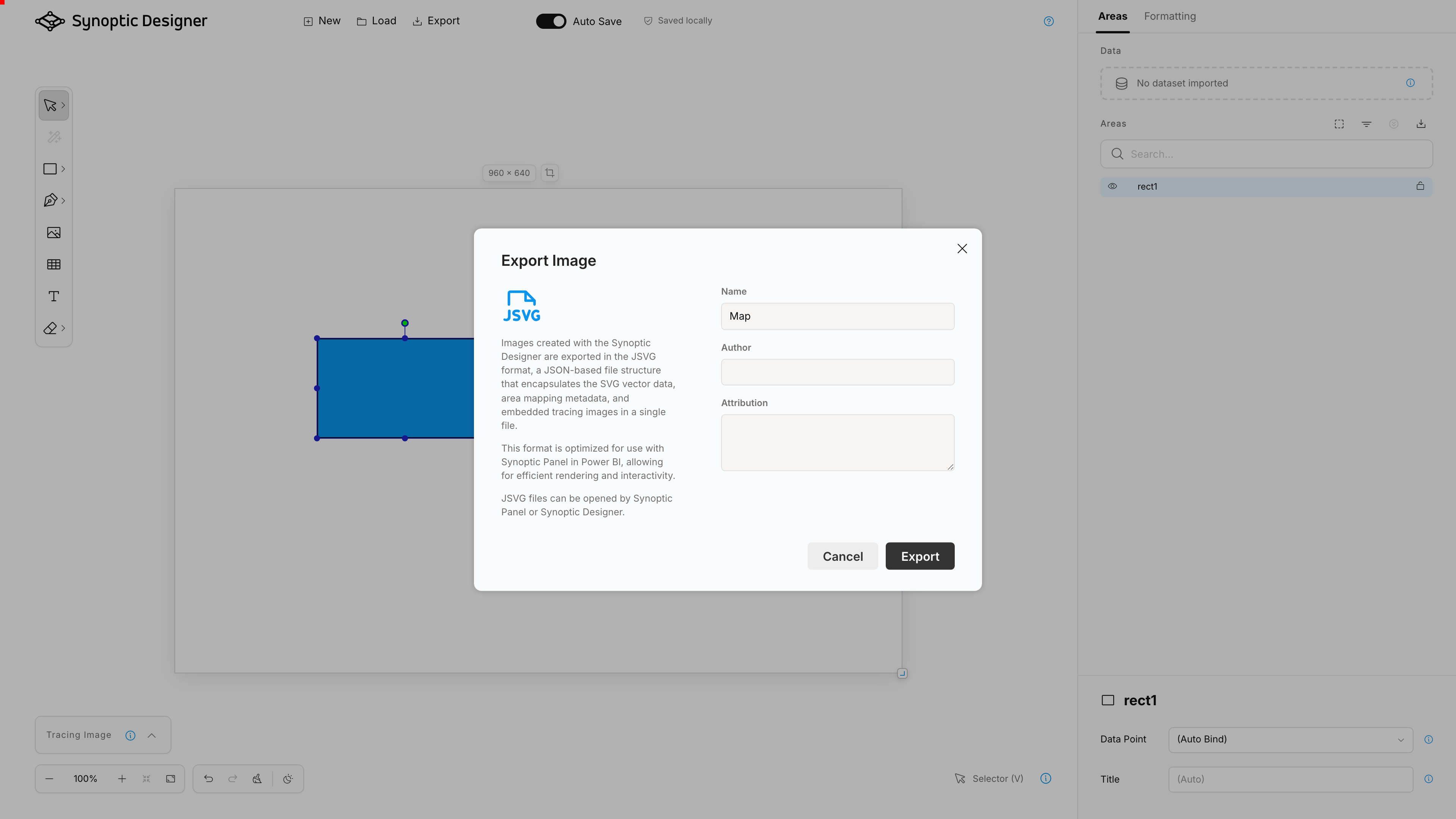
Export is a local download action. It does not publish directly to Power BI and does not require network access.
When Tracing Image is turned off, the tracing bitmap is omitted from the exported map and the Image Quality controls are disabled.
The export dialog also summarizes the Synoptic Panel import paths. You can add the downloaded file as a Local Map, or host the SVG online and use its URL as a Remote Map. Use Read More in the dialog to open the Synoptic Panel Importing Maps documentation.
What Export Preserves
SVG export preserves supported SVG content and Synoptic Panel mapping metadata, including:
- area IDs shown in Synoptic Designer;
- Area, Link, and Decoration types;
- external URLs assigned to Link elements;
- explicit datapoint bindings;
- Do Not Bind state;
- area titles;
- groups and hierarchy;
- generated Grid groups and cells;
- visible styling changes;
- supported embedded images;
- tracing image content embedded as exportable SVG image data when included in the export.
Generated area IDs in the exported SVG match the IDs shown in the Areas tree, not internal SVGCanvas IDs.
Synoptic Designer writes supported binding and behavior metadata directly into the SVG as Synoptic Panel-compatible attributes. Editor-only metadata is removed from the downloaded file.
Importing into Synoptic Panel
After exporting, import the SVG into Synoptic Panel with Add Map > Local Map. If the SVG is hosted online, import it as a Remote Map by using its URL.
For the full import workflow, see Importing Maps in the Synoptic Panel documentation.