

If you want to move from AppSource Licensing to OKVIZ Licensing, there is no direct switching path. The two subscriptions are managed separately and cannot be converted automatically.
To switch licensing systems, you must:
- Cancel the current AppSource subscription in Microsoft 365.
- Create a new OKVIZ subscription for the same visual.
- Replace the AppSource visual in your reports with the OKVIZ version.
1. Cancel the AppSource Subscription
Follow these steps in the Microsoft 365 admin center:
-
Sign in to your Microsoft 365 admin center.
-
On the navigation menu, select Billing > Your products.
-
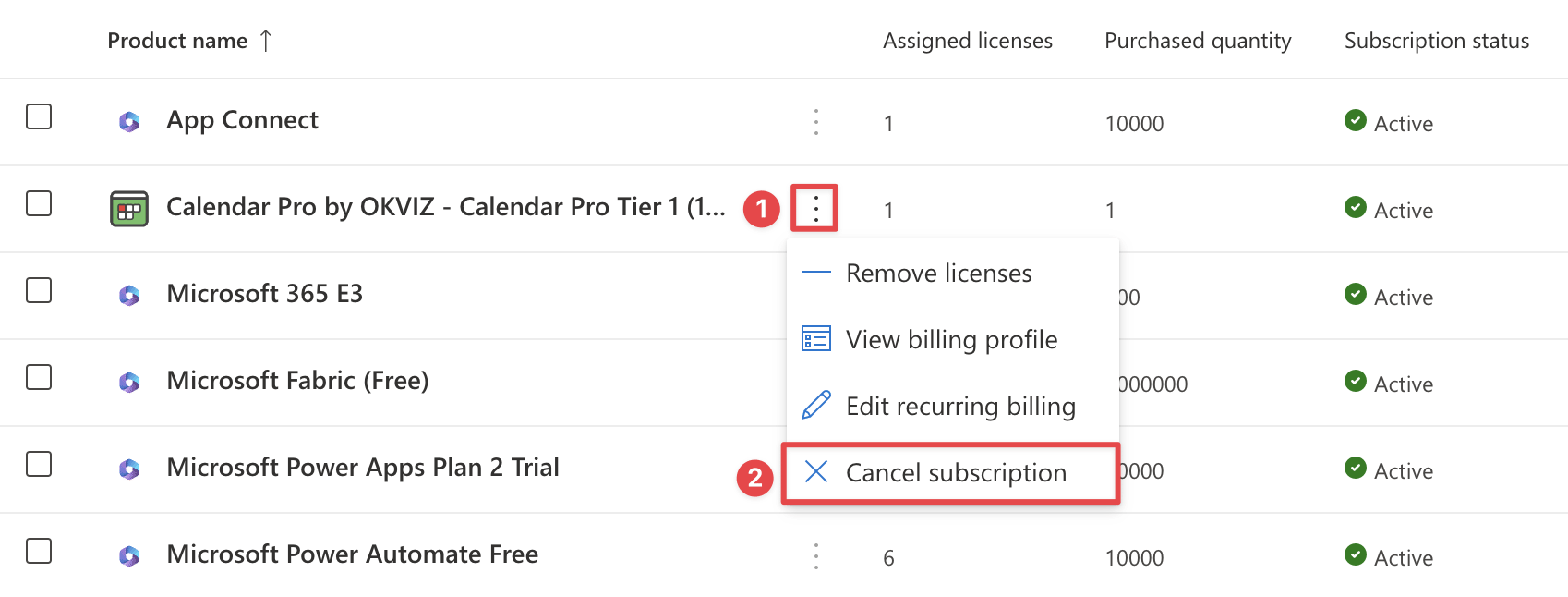
Find the row related to the OKVIZ visual you want to switch, click the ellipsis button, then choose Cancel subscription.
-
Follow the Microsoft flow to confirm the cancellation. Depending on your Microsoft billing account type and subscription status, Microsoft may either let you cancel immediately or only turn off recurring billing for the next renewal.
For the current Microsoft guidance, see Cancel your subscription in the Microsoft 365 admin center.
2. Create the New OKVIZ Subscription
After you have cancelled the AppSource subscription, create a new subscription directly with OKVIZ:
-
Visit the OKVIZ website and open the page of the visual you want to license.
-
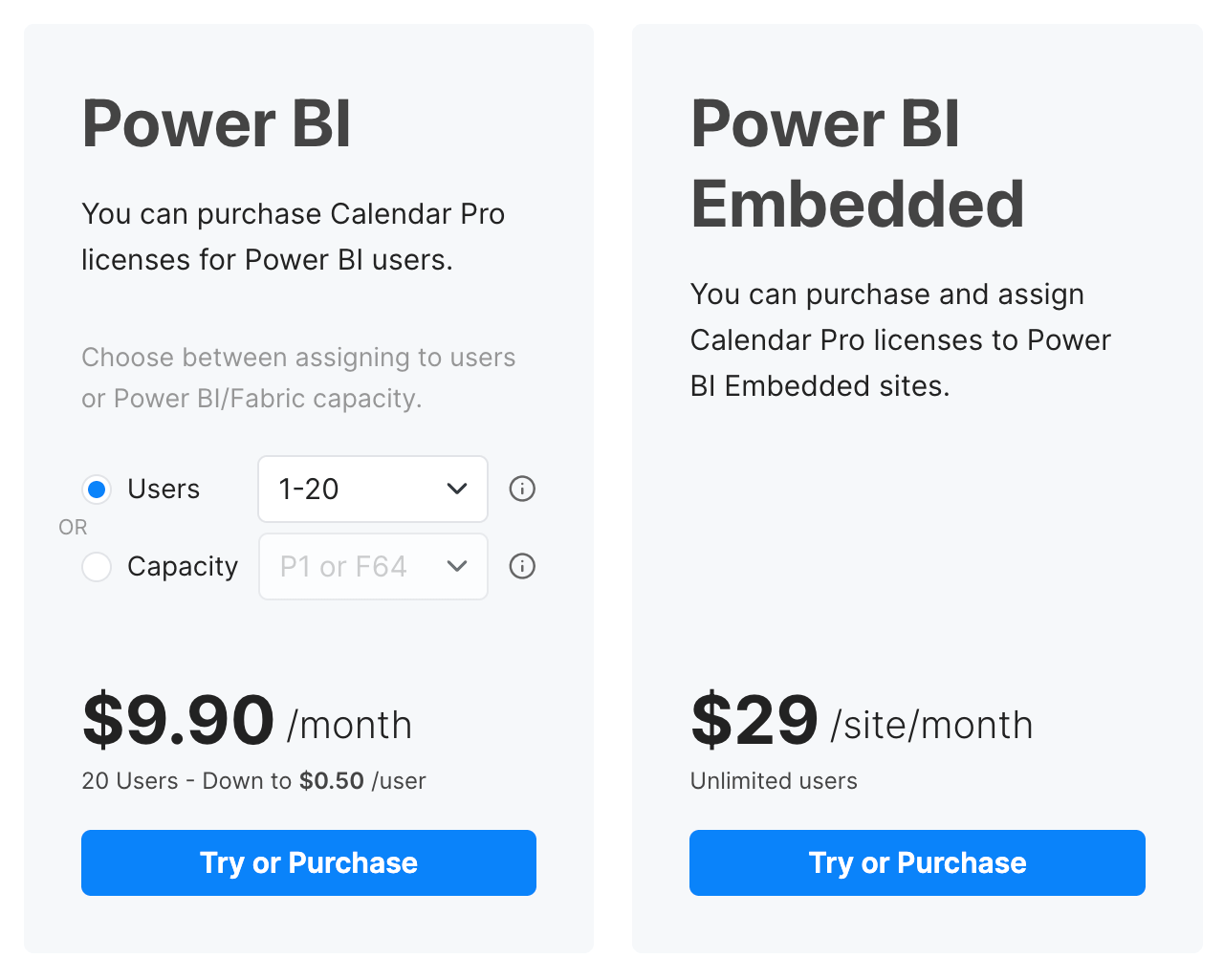
Click Try or Purchase and complete the checkout with the licensing model that fits your scenario.
-
After the purchase, follow the instructions sent by OKVIZ to start using the licensed visual.
For the full OKVIZ purchase flow, see OKVIZ Licensing.
3. Replace the Visual in Your Reports
Switching the subscription does not convert the AppSource visual already used in your reports into an OKVIZ-licensed visual. After the switch, you must obtain the OKVIZ visual and use that version in your reports.
-
Download the licensed
.pbivizfile from your OKVIZ account dashboard, or use the file you received by email after the purchase.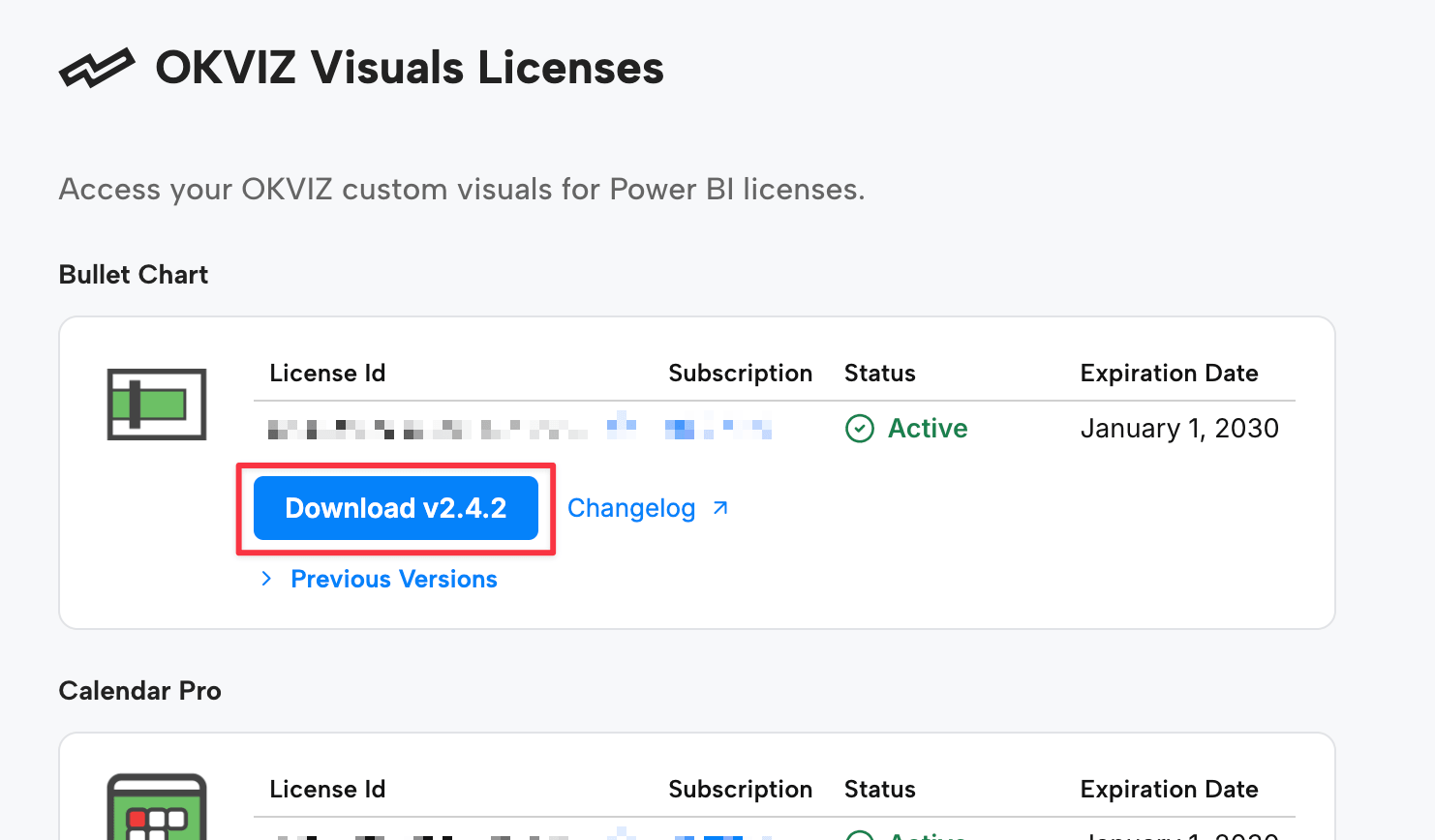
-
Choose how you want to distribute the OKVIZ version:
- Import the
.pbivizfile manually into each report, as described in Installation from a File. - Install the
.pbivizfile in the Org Store if you want to distribute the visual centrally in your organization.
- Import the
-
Open each report that still uses the AppSource version and replace it with the OKVIZ version of the visual.
-
If you manage the visual through the Org Store, update the existing Org Store entry instead of deleting it and creating a new one. See Updating from the Org Store.
Important Notes
- The AppSource subscription and the OKVIZ subscription are independent. Billing history, assignments, and subscription state are not transferred between the two systems.
- The AppSource visual already present in the report does not automatically become an OKVIZ visual when you switch the subscription.
- If you still need uninterrupted access, plan the switch around the end of the current AppSource billing period.
- For visuals that use a hybrid OKVIZ activation flow, follow the activation instructions linked from the OKVIZ Licensing page.